How to Save Data Locally in Flutter with SharedPreferences
Save settings on the device with SharedPreferences in Flutter: store bools, strings and numbers, load data before the app starts, remember dark mode, show onboarding once, and save objects as JSON.
By Yaqoob Developer · · 9 min read
- #Flutter
- #SharedPreferences
- #Local Storage
- #Dark Mode
- #Beginners
When you close a Flutter app, every variable is lost. If the user turned on dark mode, typed their name or finished onboarding, the app forgets it all on the next launch.
SharedPreferences fixes this. It saves small pieces of data on the device so your app can remember them. In this guide you will build a settings screen that remembers dark mode and the user's name, even after the app is closed.
In this post you will learn:
- What SharedPreferences is and what it should (and should not) store
- How to save and read
bool,int,double,StringandList<String> - How to load saved data when the app starts
- How to build a settings screen with a dark mode switch that is remembered
- How to show onboarding only once
- How to save a small object as JSON
- Common mistakes and how to fix them
What is SharedPreferences?
SharedPreferences stores simple key-value pairs on the device, like a tiny dictionary that survives app restarts:
'darkMode'   → true
'userName'   → 'Ali'
'openCount'  → 7
On Android it uses the platform's preference storage, on iOS NSUserDefaults, and on the web the browser's localStorage. The shared_preferences package, made by the Flutter team, gives you one simple API for all of them.
What to store (and what not to)
| Good for SharedPreferences | Use something else |
|---|---|
| dark mode on/off | passwords, tokens, API keys → flutter_secure_storage |
| language choice | lists of hundreds of items → a database like sqflite or drift |
| "onboarding seen" flag | images and files → the file system |
| user name, last search | data that must never be lost → a backend or Firebase |
SharedPreferences is not encrypted, and it is meant for small data. Think "settings", not "database".
Step 1: Add the package
flutter pub add shared_preferences
If the app was running, stop it and run it again. New plugins need a full restart.
Step 2: Save and read data
The package offers a modern API called SharedPreferencesAsync. Every call is async, so you use await:
import 'package:shared_preferences/shared_preferences.dart';

final prefs = SharedPreferencesAsync();

// Save
await prefs.setBool('darkMode', true);
await prefs.setString('userName', 'Ali');
await prefs.setInt('openCount', 7);
await prefs.setDouble('fontScale', 1.2);
await prefs.setStringList('recentSearches', ['flutter', 'dart']);

// Read (returns null if nothing was saved yet)
final bool? darkMode = await prefs.getBool('darkMode');
final String? name = await prefs.getString('userName');
final int? openCount = await prefs.getInt('openCount');

// Delete one value
await prefs.remove('userName');
Every getter returns a nullable value (bool?, String?) because the key might not exist yet, for example on the very first launch. Use ?? to give a default value:
final darkMode = await prefs.getBool('darkMode') ?? false;
final name = await prefs.getString('userName') ?? 'Guest';
Supported types
| Type | Save | Read |
|---|---|---|
bool | setBool | getBool |
int | setInt | getInt |
double | setDouble | getDouble |
String | setString | getString |
List<String> | setStringList | getStringList |
Anything else, such as a custom object or a DateTime, must be converted to one of these types first. We will see how later.
Note: You may also see older tutorials using SharedPreferences.getInstance(). That is the legacy API. It still works, but the package authors recommend SharedPreferencesAsync (or SharedPreferencesWithCache) for new code.
Step 3: Keep your keys in one place
Typing 'darkMode' in many files invites typos. A typo means you save to one key and read from another, and nothing seems to be saved. Put keys in constants:
class PrefKeys {
  static const darkMode = 'darkMode';
  static const userName = 'userName';
  static const openCount = 'openCount';
  static const onboardingSeen = 'onboardingSeen';
}
Step 4: Build a settings screen that remembers
Here is a complete app. It has a settings screen with a dark mode switch and a name field. Close the app, open it again, and everything is exactly as you left it. It also counts how many times the app has been opened.
Replace lib/main.dart with:
import 'package:flutter/material.dart';
import 'package:shared_preferences/shared_preferences.dart';

class PrefKeys {
  static const darkMode = 'darkMode';
  static const userName = 'userName';
  static const openCount = 'openCount';
}

Future<void> main() async {
  WidgetsFlutterBinding.ensureInitialized();

  final prefs = SharedPreferencesAsync();

  // Load saved values before the first frame, so there is no "flash"
  // of the wrong theme.
  final darkMode = await prefs.getBool(PrefKeys.darkMode) ?? false;
  final userName = await prefs.getString(PrefKeys.userName) ?? '';
  final openCount = (await prefs.getInt(PrefKeys.openCount) ?? 0) + 1;
  await prefs.setInt(PrefKeys.openCount, openCount);

  runApp(SettingsApp(
    prefs: prefs,
    initialDarkMode: darkMode,
    initialName: userName,
    openCount: openCount,
  ));
}

class SettingsApp extends StatefulWidget {
  const SettingsApp({
    super.key,
    required this.prefs,
    required this.initialDarkMode,
    required this.initialName,
    required this.openCount,
  });

  final SharedPreferencesAsync prefs;
  final bool initialDarkMode;
  final String initialName;
  final int openCount;

  @override
  State<SettingsApp> createState() => _SettingsAppState();
}

class _SettingsAppState extends State<SettingsApp> {
  late bool _darkMode = widget.initialDarkMode;

  Future<void> _setDarkMode(bool value) async {
    setState(() => _darkMode = value);          // update the UI now
    await widget.prefs.setBool(PrefKeys.darkMode, value); // and remember it
  }

  @override
  Widget build(BuildContext context) {
    return MaterialApp(
      debugShowCheckedModeBanner: false,
      theme: ThemeData(colorSchemeSeed: Colors.indigo, useMaterial3: true),
      darkTheme: ThemeData(
        colorSchemeSeed: Colors.indigo,
        brightness: Brightness.dark,
        useMaterial3: true,
      ),
      themeMode: _darkMode ? ThemeMode.dark : ThemeMode.light,
      home: SettingsScreen(
        prefs: widget.prefs,
        darkMode: _darkMode,
        onDarkModeChanged: _setDarkMode,
        initialName: widget.initialName,
        openCount: widget.openCount,
      ),
    );
  }
}

class SettingsScreen extends StatefulWidget {
  const SettingsScreen({
    super.key,
    required this.prefs,
    required this.darkMode,
    required this.onDarkModeChanged,
    required this.initialName,
    required this.openCount,
  });

  final SharedPreferencesAsync prefs;
  final bool darkMode;
  final ValueChanged<bool> onDarkModeChanged;
  final String initialName;
  final int openCount;

  @override
  State<SettingsScreen> createState() => _SettingsScreenState();
}

class _SettingsScreenState extends State<SettingsScreen> {
  late final _nameController = TextEditingController(text: widget.initialName);
  late String _savedName = widget.initialName;

  @override
  void dispose() {
    _nameController.dispose();
    super.dispose();
  }

  Future<void> _saveName() async {
    final name = _nameController.text.trim();
    await widget.prefs.setString(PrefKeys.userName, name);
    if (!mounted) return;
    setState(() => _savedName = name);
    FocusScope.of(context).unfocus();
    ScaffoldMessenger.of(context).showSnackBar(
      const SnackBar(content: Text('Name saved')),
    );
  }

  Future<void> _resetAll() async {
    await widget.prefs.clear(
      allowList: {PrefKeys.darkMode, PrefKeys.userName, PrefKeys.openCount},
    );
    if (!mounted) return;
    _nameController.clear();
    setState(() => _savedName = '');
    widget.onDarkModeChanged(false);
  }

  @override
  Widget build(BuildContext context) {
    final greeting = _savedName.isEmpty ? 'Hello, Guest!' : 'Hello, $_savedName!';

    return Scaffold(
      appBar: AppBar(title: const Text('Settings')),
      body: ListView(
        padding: const EdgeInsets.all(16),
        children: [
          Text(greeting, style: Theme.of(context).textTheme.headlineSmall),
          Text('You have opened this app ${widget.openCount} time(s).'),
          const SizedBox(height: 24),
          Card(
            child: SwitchListTile(
              secondary: const Icon(Icons.dark_mode_outlined),
              title: const Text('Dark mode'),
              subtitle: const Text('Remembered after you close the app'),
              value: widget.darkMode,
              onChanged: widget.onDarkModeChanged,
            ),
          ),
          const SizedBox(height: 16),
          TextField(
            controller: _nameController,
            textInputAction: TextInputAction.done,
            onSubmitted: (_) => _saveName(),
            decoration: const InputDecoration(
              labelText: 'Your name',
              border: OutlineInputBorder(),
            ),
          ),
          const SizedBox(height: 12),
          FilledButton(onPressed: _saveName, child: const Text('Save name')),
          const SizedBox(height: 32),
          TextButton.icon(
            onPressed: _resetAll,
            icon: const Icon(Icons.restart_alt),
            label: const Text('Reset all settings'),
          ),
        ],
      ),
    );
  }
}
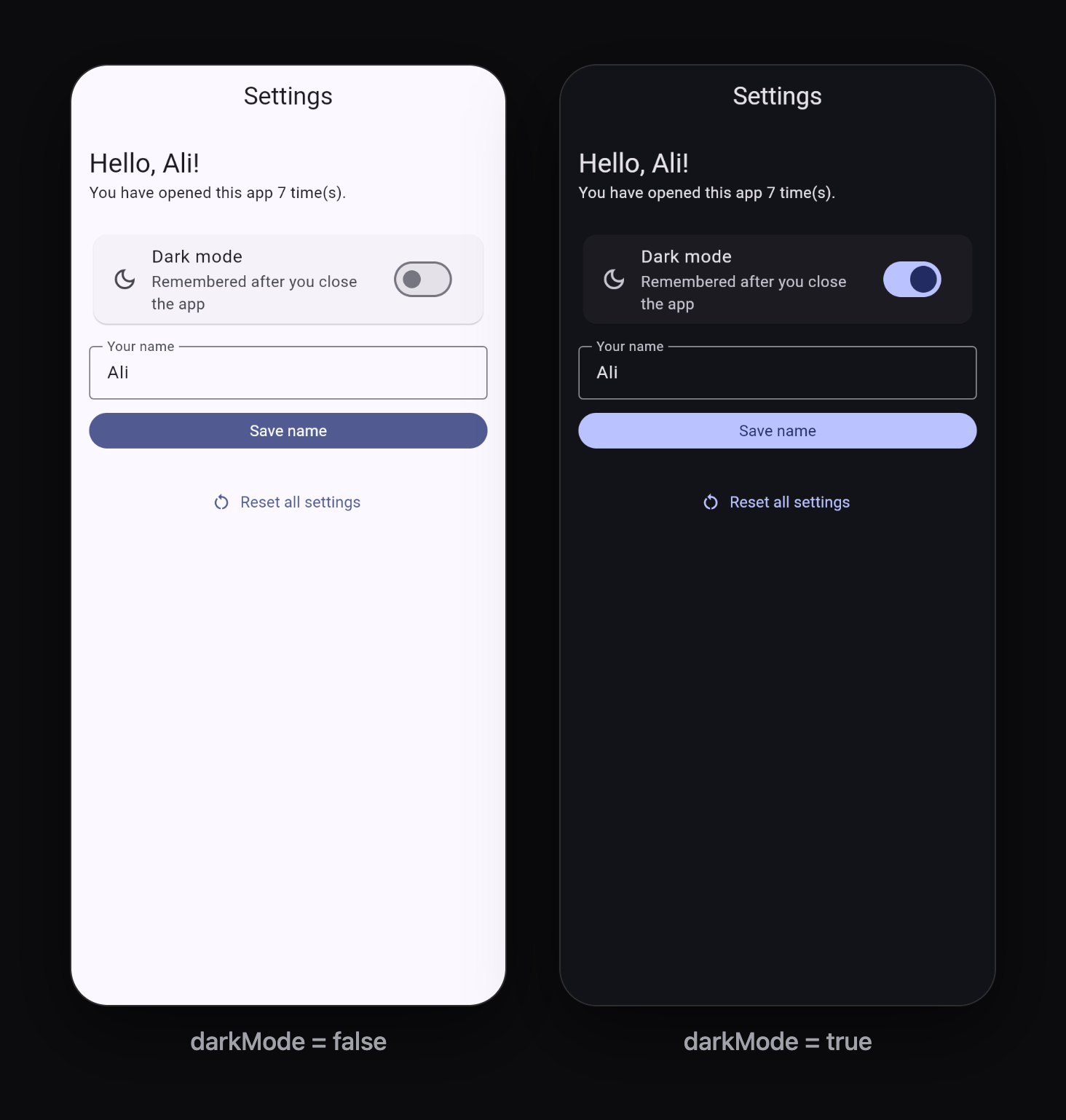
Test it:
- Turn on Dark mode and save your name.
- Fully close the app (stop it in your IDE, or swipe it away on the phone).
- Run it again. Dark mode is on, your name is shown, and the open counter went up by one.
How it works
- Load before
runApp. Inmain()we read every saved value before the first frame. That is why we callWidgetsFlutterBinding.ensureInitialized()first; plugins need it beforerunApp. Loading early prevents the app from flashing in light mode and then switching to dark. - Update the UI, then save. In
_setDarkModewe callsetStatefirst so the switch responds instantly, then save in the background. themeModeswitches between thethemeanddarkThemeyou defined inMaterialApp.clear(allowList: {...})removes only our keys. Always pass anallowList, so you never delete preferences saved by other packages.
Show onboarding only once
A very common use: show the welcome screens on the first launch only.
Future<void> main() async {
  WidgetsFlutterBinding.ensureInitialized();
  final prefs = SharedPreferencesAsync();
  final seen = await prefs.getBool('onboardingSeen') ?? false;

  runApp(MaterialApp(
    home: seen ? const HomeScreen() : const OnboardingScreen(),
  ));
}
And when the user taps "Get started" on the last onboarding page:
Future<void> _finishOnboarding() async {
  await SharedPreferencesAsync().setBool('onboardingSeen', true);
  if (!mounted) return;
  Navigator.pushReplacement(
    context,
    MaterialPageRoute(builder: (_) => const HomeScreen()),
  );
}
pushReplacement removes the onboarding screen, so the back button does not return to it. (See my navigation guide for more about this.)
Save a small object as JSON
SharedPreferences cannot store a custom class directly, but it can store a String, and any object can become a JSON string:
import 'dart:convert';

class UserProfile {
  const UserProfile({required this.name, required this.city});

  final String name;
  final String city;

  Map<String, dynamic> toJson() => {'name': name, 'city': city};

  factory UserProfile.fromJson(Map<String, dynamic> json) => UserProfile(
        name: json['name'] as String,
        city: json['city'] as String,
      );
}

// Save
const profile = UserProfile(name: 'Ali', city: 'Lahore');
await prefs.setString('profile', jsonEncode(profile.toJson()));

// Read
final saved = await prefs.getString('profile');
if (saved != null) {
  final loaded = UserProfile.fromJson(jsonDecode(saved) as Map<String, dynamic>);
  print(loaded.city); // Lahore
}
jsonEncode turns a map into text, and jsonDecode turns it back. This is the same JSON you work with in my HTTP API guide. Keep this for small objects only. For lists of many records, use a real database.
Combine with Provider
In a bigger app, put the loading and saving inside a ChangeNotifier, so any screen can read or change a setting:
class SettingsModel extends ChangeNotifier {
  SettingsModel(this._prefs, {required bool darkMode}) : _darkMode = darkMode;

  final SharedPreferencesAsync _prefs;
  bool _darkMode;

  bool get darkMode => _darkMode;

  Future<void> setDarkMode(bool value) async {
    _darkMode = value;
    notifyListeners();
    await _prefs.setBool('darkMode', value);
  }
}
If Provider is new to you, read Flutter setState vs Provider first.
Common mistakes and how to fix them
"Binding has not yet been initialized"
You used SharedPreferences in main() before runApp without calling WidgetsFlutterBinding.ensureInitialized() first. Add it as the first line of main().
"MissingPluginException"
You added the package while the app was running. Stop the app completely and run it again. If it still happens, run flutter clean and flutter pub get.
The value is always null
- The key is spelled differently when saving and reading. Use constants (Step 3).
- You forgot
awaitwhen saving, and the app was closed before the save finished. - You are reading with the wrong type: a value saved with
setIntmust be read withgetInt.
Data is gone after reinstalling the app
That is expected. Uninstalling an app deletes its stored data. Data that must survive reinstalls belongs on a server or in Firebase.
Dark mode flashes light for a moment on startup
You load the setting after the first frame (for example in initState). Load it in main() before runApp, as in Step 4.
Quick reference
| I want to... | Code |
|---|---|
| Create the preferences object | final prefs = SharedPreferencesAsync(); |
| Save a bool | await prefs.setBool('key', true); |
| Read with a default | await prefs.getBool('key') ?? false |
| Delete one value | await prefs.remove('key'); |
| Delete my app's values | await prefs.clear(allowList: {'a', 'b'}); |
| Save an object | setString('key', jsonEncode(obj.toJson())) |
What to learn next
- Flutter setState vs Provider: State Management for Beginners
- How to Build and Release a Flutter APK and App Bundle to share your app with real users
- Connect your Flutter project to Firebase when you need data saved online and shared across devices
Keep reading
More articles
· 9 min read
Dart Basics for Flutter Beginners: Variables, Functions and Classes
Learn the Dart you need for Flutter: variables, final and const, null safety, lists and maps, if and loops, functions with named parameters, classes, and async/await, with runnable examples.
· 9 min read
Flutter Row, Column and Stack Explained with Examples
Understand Flutter's core layout widgets: main and cross axis, mainAxisAlignment, crossAxisAlignment, Expanded, Flexible, Spacer, Stack and Positioned, plus a complete profile card example.
· 7 min read
Flutter Navigation: How to Move Between Screens
Learn Flutter navigation step by step: Navigator.push and pop, passing data to a screen, returning results, pushReplacement for login flows, named routes, and when to use go_router.