Flutter setState vs Provider: State Management for Beginners
Understand state in Flutter: when setState is enough, why prop drilling hurts, and how Provider works with ChangeNotifier, watch, read and Consumer, using a complete shopping cart example.
By Yaqoob Developer · · 8 min read
- #Flutter
- #State Management
- #Provider
- #setState
- #Beginners
"State management" sounds complicated, but the idea is simple: when your data changes, the screen should update. In this beginner guide you will learn what state is, when setState is enough, and when to use Provider, the package recommended in Flutter's own documentation for beginners.
We will build the same shopping cart twice: first with setState, then with Provider. You will see exactly why Provider exists.
In this post you will learn:
- What "state" means in Flutter
- How
setStateworks - Local state vs app state
- The problem
setStatecannot solve well - How Provider works:
ChangeNotifier,ChangeNotifierProvider,watchandread - A complete shopping cart example with Provider
- Common mistakes and how to fix them
What is state?
State is any data that can change while the app is running and affects what the user sees:
- the number in a counter
- whether a checkbox is ticked
- the text typed into a search field
- the items in a shopping cart
- whether the user is logged in
When state changes, Flutter must rebuild the widgets that show it. State management is just the way you tell Flutter "this data changed, please redraw".
setState: the built-in way
You already know setState from the classic counter app:
class CounterScreen extends StatefulWidget {
  const CounterScreen({super.key});

  @override
  State<CounterScreen> createState() => _CounterScreenState();
}

class _CounterScreenState extends State<CounterScreen> {
  int _count = 0;

  void _increment() {
    setState(() {
      _count++;
    });
  }

  @override
  Widget build(BuildContext context) {
    return Scaffold(
      body: Center(child: Text('Count: $_count')),
      floatingActionButton: FloatingActionButton(
        onPressed: _increment,
        child: const Icon(Icons.add),
      ),
    );
  }
}
When you call setState, Flutter runs build() again for this widget, and the new number appears.
setState is perfect when the data is used by one widget only. This is called local state (or ephemeral state). Examples:
- the selected tab in a bottom navigation bar
- show/hide password
- the current page of an onboarding slider
- a loading spinner on one button
Do not feel you must use a package for these. setState is the right tool.
The problem: sharing state between screens
Now imagine a shop app:
- The product screen has "Add to cart" buttons.
- The app bar shows a cart badge with the number of items.
- The cart screen lists the items and the total price.
All three need the same cart. This is app state: data shared by many widgets and screens.
With only setState, the cart must live in a widget above all of them, and you must pass the cart list and an onAdd function down through every constructor in between:
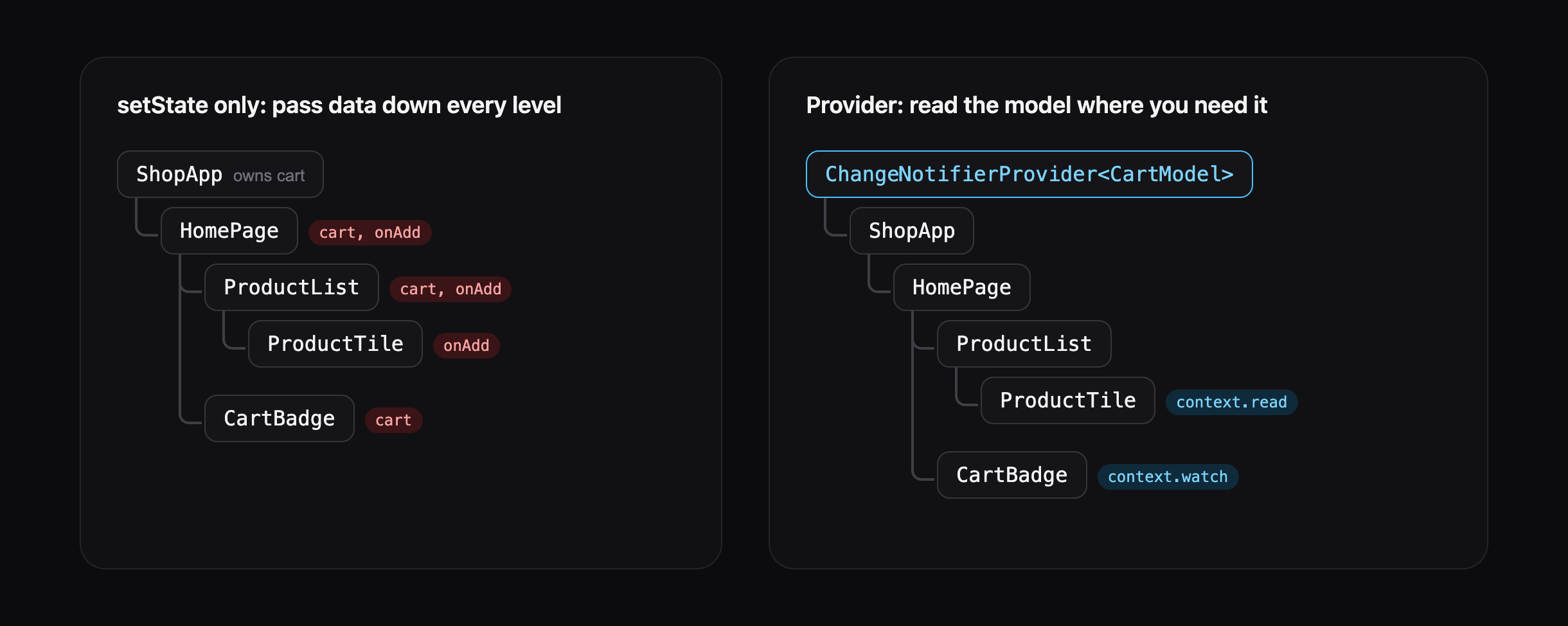
This is called prop drilling. It works for one or two levels, but as the app grows:
- every widget in the middle receives data it does not use
- adding a new screen means changing many constructors
- the whole tree rebuilds on every change, even parts that do not show the cart
Provider solves this.
How Provider works
Provider has three simple parts:
- A model class that holds the data and extends
ChangeNotifier. When the data changes, it callsnotifyListeners(). ChangeNotifierProviderplaces that model above your app, so any widget below can reach it.context.watchandcontext.readlet any widget get the model.watchalso rebuilds the widget when the model changes.
CartModel (ChangeNotifier)
   │  notifyListeners()
   ▼
ChangeNotifierProvider  ← at the top of the app
   │
   ├── ProductScreen   → context.read<CartModel>().add(...)
   ├── Cart badge      → context.watch<CartModel>().count
   └── CartScreen      → context.watch<CartModel>().items
Step 1: Add the provider package
flutter pub add provider
Step 2: Create the model
Create lib/cart_model.dart:
import 'package:flutter/foundation.dart';

class Product {
  const Product(this.name, this.price);

  final String name;
  final double price;
}

class CartModel extends ChangeNotifier {
  final List<Product> _items = [];

  // Read-only view, so other widgets cannot change the list directly
  List<Product> get items => List.unmodifiable(_items);

  int get count => _items.length;

  double get total => _items.fold(0, (sum, item) => sum + item.price);

  void add(Product product) {
    _items.add(product);
    notifyListeners(); // tell every listening widget to rebuild
  }

  void remove(Product product) {
    _items.remove(product);
    notifyListeners();
  }

  void clear() {
    _items.clear();
    notifyListeners();
  }
}
- The list
_itemsis private. Widgets can only change it throughadd,removeandclear, which always callnotifyListeners(). countandtotalare getters, calculated from the list, so they are always correct.
Notice that this class contains no widgets. Your business logic lives in plain Dart, separate from the UI.
Step 3: Provide the model
In lib/main.dart, wrap your app with ChangeNotifierProvider:
import 'package:flutter/material.dart';
import 'package:provider/provider.dart';

import 'cart_model.dart';
import 'product_screen.dart';

void main() {
  runApp(
    ChangeNotifierProvider(
      create: (context) => CartModel(),
      child: const ShopApp(),
    ),
  );
}

class ShopApp extends StatelessWidget {
  const ShopApp({super.key});

  @override
  Widget build(BuildContext context) {
    return MaterialApp(
      debugShowCheckedModeBanner: false,
      theme: ThemeData(colorSchemeSeed: Colors.deepOrange, useMaterial3: true),
      home: const ProductScreen(),
    );
  }
}
Because the provider sits above MaterialApp, every screen in the app can use the cart, including screens you open later with Navigator.push.
Step 4: The product screen
Create lib/product_screen.dart:
import 'package:flutter/material.dart';
import 'package:provider/provider.dart';

import 'cart_model.dart';
import 'cart_screen.dart';

const products = [
  Product('Coffee', 3.50),
  Product('Croissant', 2.75),
  Product('Orange Juice', 4.00),
  Product('Sandwich', 6.25),
  Product('Muffin', 2.50),
];

class ProductScreen extends StatelessWidget {
  const ProductScreen({super.key});

  @override
  Widget build(BuildContext context) {
    return Scaffold(
      appBar: AppBar(
        title: const Text('Cafe Menu'),
        actions: const [CartButton()],
      ),
      body: ListView.builder(
        itemCount: products.length,
        itemBuilder: (context, index) {
          final product = products[index];
          return ListTile(
            title: Text(product.name),
            subtitle: Text('\$${product.price.toStringAsFixed(2)}'),
            trailing: FilledButton.tonal(
              // read: we only call a method, we do not need to rebuild
              onPressed: () => context.read<CartModel>().add(product),
              child: const Text('Add'),
            ),
          );
        },
      ),
    );
  }
}

class CartButton extends StatelessWidget {
  const CartButton({super.key});

  @override
  Widget build(BuildContext context) {
    // watch: rebuild this button whenever the cart changes
    final count = context.watch<CartModel>().count;

    return IconButton(
      icon: Badge(
        isLabelVisible: count > 0,
        label: Text('$count'),
        child: const Icon(Icons.shopping_cart_outlined),
      ),
      onPressed: () => Navigator.push(
        context,
        MaterialPageRoute(builder: (context) => const CartScreen()),
      ),
    );
  }
}
Two important details:
- The Add button uses
context.readbecause it only calls a method. It does not display cart data, so it does not need to rebuild. CartButtonis a separate small widget that usescontext.watch. When the cart changes, only this small button rebuilds, not the whole product list.
Step 5: The cart screen
Create lib/cart_screen.dart:
import 'package:flutter/material.dart';
import 'package:provider/provider.dart';

import 'cart_model.dart';

class CartScreen extends StatelessWidget {
  const CartScreen({super.key});

  @override
  Widget build(BuildContext context) {
    final cart = context.watch<CartModel>();

    return Scaffold(
      appBar: AppBar(title: const Text('Your Cart')),
      body: cart.items.isEmpty
          ? const Center(child: Text('Your cart is empty'))
          : ListView.builder(
              itemCount: cart.items.length,
              itemBuilder: (context, index) {
                final item = cart.items[index];
                return ListTile(
                  title: Text(item.name),
                  subtitle: Text('\$${item.price.toStringAsFixed(2)}'),
                  trailing: IconButton(
                    icon: const Icon(Icons.remove_circle_outline),
                    onPressed: () => context.read<CartModel>().remove(item),
                  ),
                );
              },
            ),
      bottomNavigationBar: SafeArea(
        child: Padding(
          padding: const EdgeInsets.all(16),
          child: Row(
            children: [
              Text(
                'Total: \$${cart.total.toStringAsFixed(2)}',
                style: Theme.of(context).textTheme.titleLarge,
              ),
              const Spacer(),
              FilledButton(
                onPressed: cart.items.isEmpty ? null : cart.clear,
                child: const Text('Checkout'),
              ),
            ],
          ),
        ),
      ),
    );
  }
}
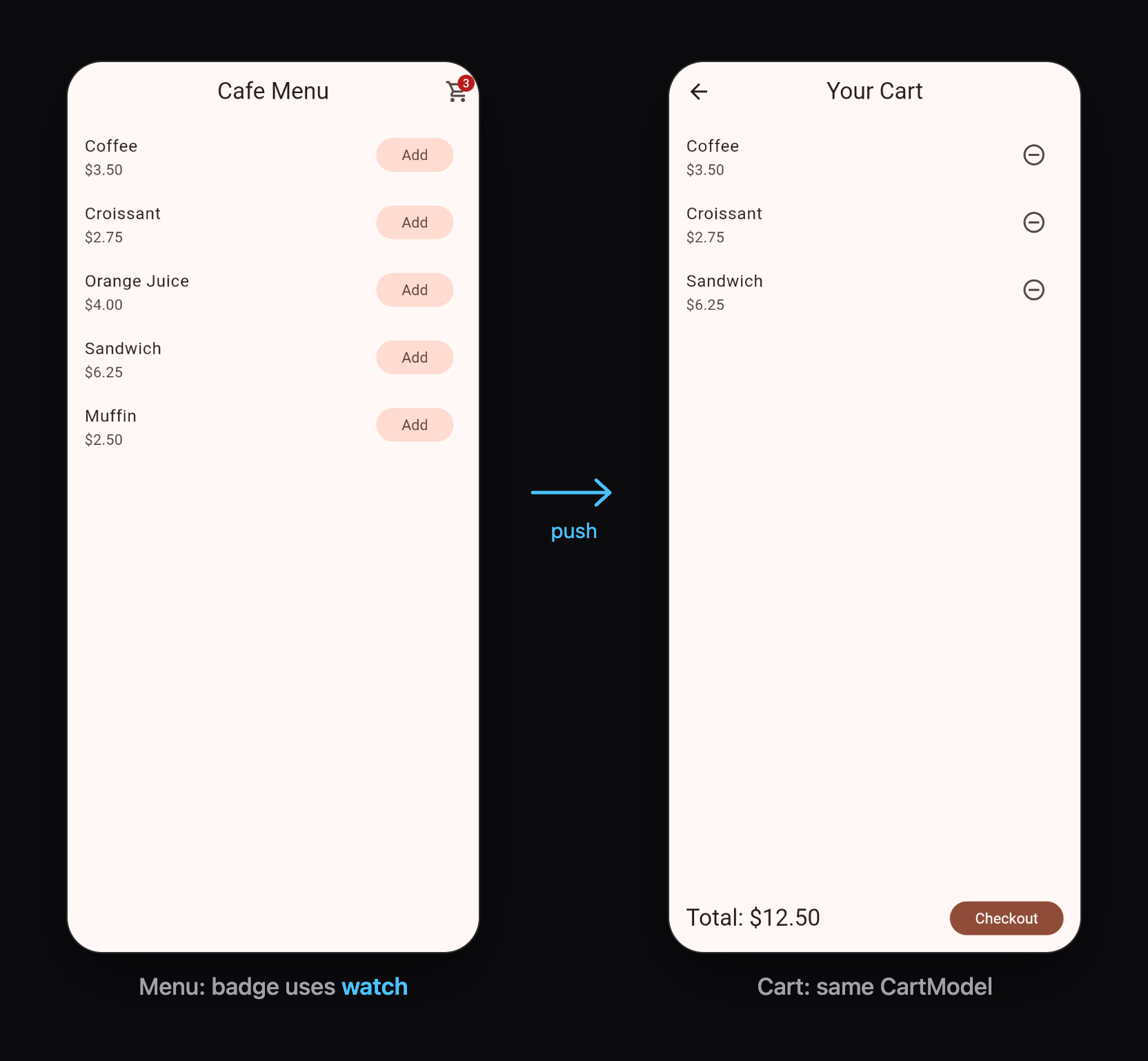
Run the app. Add a few items: the badge number goes up. Open the cart, remove an item, and go back: the badge is already updated. No data was passed through any constructor.
watch vs read vs Consumer
| When to use | Rebuilds? | |
|---|---|---|
context.watch<T>() | inside build, to show data | yes, when the model changes |
context.read<T>() | inside onPressed and other callbacks, to call a method | no |
Consumer<T> | to rebuild only a small part of a big build method | only the builder part |
Consumer looks like this:
Consumer<CartModel>(
  builder: (context, cart, child) {
    return Text('Total: \$${cart.total.toStringAsFixed(2)}');
  },
)
It does the same job as context.watch, but only the widget returned from builder rebuilds. Making a small widget (like CartButton above) does the same thing and is often easier to read.
More than one model: MultiProvider
Real apps have several models (cart, user, theme settings). Provide them all at once:
runApp(
  MultiProvider(
    providers: [
      ChangeNotifierProvider(create: (context) => CartModel()),
      ChangeNotifierProvider(create: (context) => UserModel()),
    ],
    child: const ShopApp(),
  ),
);
So which should I use?
| Use setState when... | Use Provider when... |
|---|---|
| only one widget uses the data | several widgets or screens use the same data |
| the data is UI-only (a toggle, a tab index) | the data is app data (cart, user, settings) |
| the data can be lost when the screen closes | the data must survive moving between screens |
Most real apps use both: setState for small UI details and Provider for shared app data.
What about Riverpod and Bloc?
Riverpod (made by the same author as Provider) and Bloc are popular for larger apps. Once you understand Provider's ideas (a model that notifies, widgets that listen), learning either of them is much easier. Start with Provider.
Common mistakes and how to fix them
"Could not find the correct Provider<CartModel> above this widget"
The widget is not below the ChangeNotifierProvider. Put the provider above MaterialApp in main(), as in Step 3. Also check that you imported the same CartModel class everywhere.
"Tried to listen to a value exposed with provider, from outside of the widget tree"
You used context.watch inside onPressed or another callback. Use context.read in callbacks.
The screen does not update
You changed the data but forgot to call notifyListeners() in the model method.
Everything rebuilds and the app feels slow
You used context.watch at the top of a big screen. Move the part that shows the data into a smaller widget, or use Consumer.
What to learn next
- How to Save Data Locally in Flutter with SharedPreferences so your app remembers settings after it closes
- Flutter Navigation: How to Move Between Screens
- Flutter Clean Architecture and folder structure to organize models and screens as your app grows
Keep reading
More articles
· 9 min read
Dart Basics for Flutter Beginners: Variables, Functions and Classes
Learn the Dart you need for Flutter: variables, final and const, null safety, lists and maps, if and loops, functions with named parameters, classes, and async/await, with runnable examples.
· 9 min read
Flutter Row, Column and Stack Explained with Examples
Understand Flutter's core layout widgets: main and cross axis, mainAxisAlignment, crossAxisAlignment, Expanded, Flexible, Spacer, Stack and Positioned, plus a complete profile card example.
· 7 min read
Flutter Navigation: How to Move Between Screens
Learn Flutter navigation step by step: Navigator.push and pop, passing data to a screen, returning results, pushReplacement for login flows, named routes, and when to use go_router.