How to Add Images, Icons and Custom Fonts in Flutter
Add images, icons and fonts to your Flutter app: assets in pubspec.yaml, Image.asset, Image.network with loading and error states, CircleAvatar, Material icons, custom font files and google_fonts.
By Yaqoob Developer · · 7 min read
- #Flutter
- #Images
- #Assets
- #Fonts
- #Icons
- #Beginners
Images, icons and good fonts are what make an app look finished. In this beginner guide you will learn how to add your own images, load images from the internet, use icons, and change the font of your whole app, step by step.
In this post you will learn:
- How to add image files to your project with
pubspec.yaml - How to show local images with
Image.asset - How to load images from the internet with
Image.network - How to make round profile pictures
- How to use Material icons and change their size and color
- How to add custom font files
- How to use Google Fonts with one line of code
- How to fix "Unable to load asset" and other common errors
Part 1: Local images (assets)
An asset is a file you ship inside your app: images, icons, fonts, JSON files. Assets work offline and load instantly.
Step 1: Create an assets folder
In the root of your project (next to pubspec.yaml, not inside lib), create this folder structure:
my_app/
├── assets/
│   └── images/
│       ├── logo.png
│       └── banner.jpg
├── lib/
└── pubspec.yaml
Copy your image files into assets/images/. Use lowercase file names with no spaces, such as profile_photo.png, not Profile Photo.PNG.
Step 2: Register the folder in pubspec.yaml
Flutter only includes files you list in pubspec.yaml. Open it and find the flutter: section near the bottom. Add an assets: list:
flutter:
  uses-material-design: true

  assets:
    - assets/images/
- The path ends with
/, which means "include every file in this folder". pubspec.yamlis very strict about indentation. Use exactly 2 spaces per level, never tabs.assets:is indented 2 spaces underflutter:, and each item 4 spaces with a dash.
Save the file. VS Code and Android Studio run flutter pub get automatically. If you do not use an IDE, run it yourself. Then fully restart the app; hot reload does not pick up new assets.
Step 3: Show the image
Image.asset('assets/images/logo.png')
The path must match the file exactly, including the folder name and the upper or lower case letters.
Control the size with fit
Image.asset(
  'assets/images/banner.jpg',
  width: double.infinity,
  height: 200,
  fit: BoxFit.cover,
)
fit decides how the image fills its box:
| BoxFit | What it does |
|---|---|
cover | fills the whole box and crops the edges if needed (most common) |
contain | shows the whole image, may leave empty space |
fill | stretches the image to fill the box (can look distorted) |
fitWidth | matches the box width |
fitHeight | matches the box height |
For banners, cards and backgrounds, BoxFit.cover is almost always the right choice.
Rounded corners
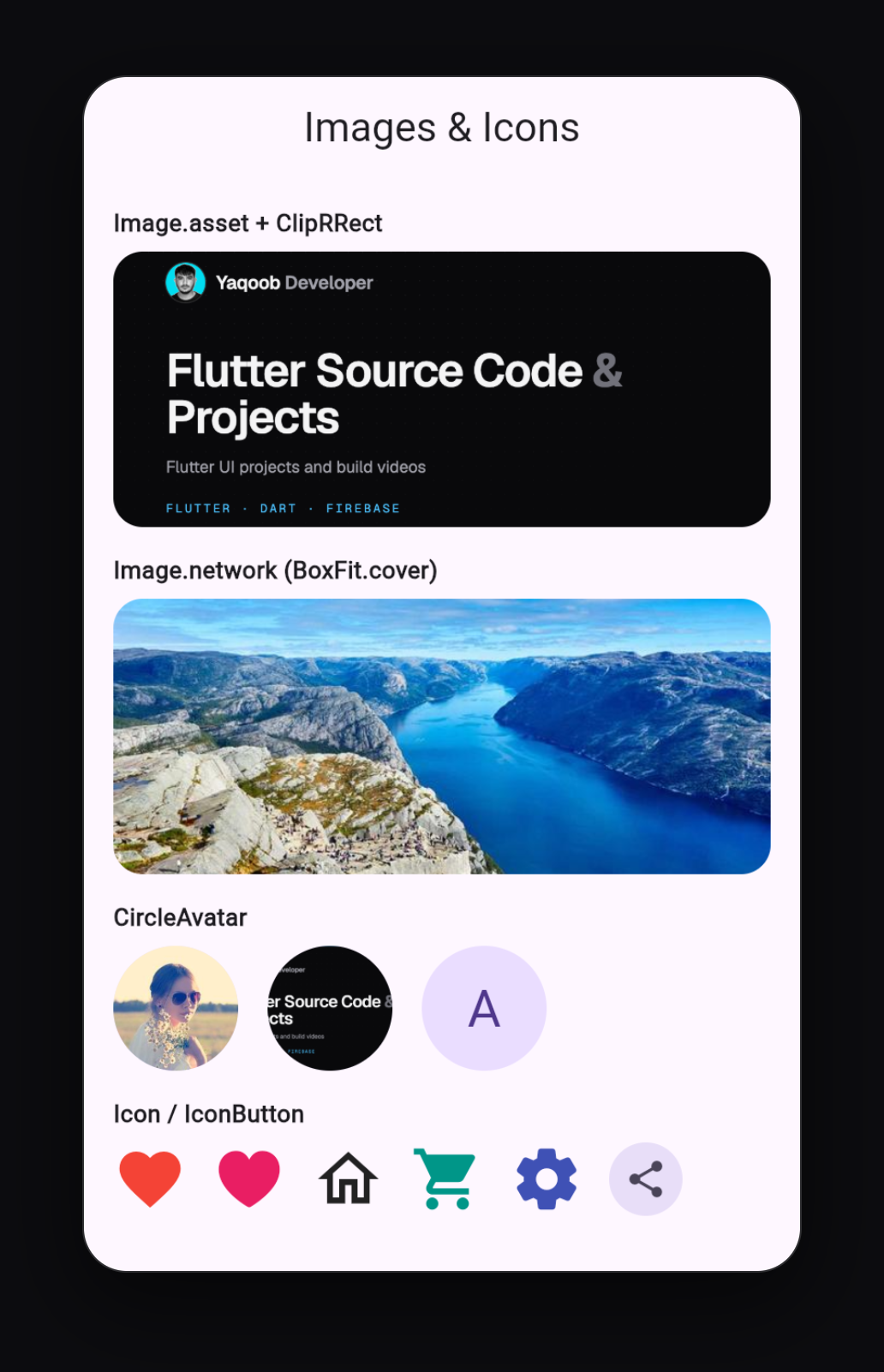
Wrap the image in ClipRRect:
ClipRRect(
  borderRadius: BorderRadius.circular(16),
  child: Image.asset(
    'assets/images/banner.jpg',
    height: 180,
    width: double.infinity,
    fit: BoxFit.cover,
  ),
)
Part 2: Images from the internet
To show an image from a URL, use Image.network:
Image.network(
  'https://picsum.photos/id/1015/600/400',
  height: 200,
  width: double.infinity,
  fit: BoxFit.cover,
)
Network images take time to download and can fail, so always add a loading and an error state:
Image.network(
  'https://picsum.photos/id/1015/600/400',
  height: 200,
  width: double.infinity,
  fit: BoxFit.cover,
  loadingBuilder: (context, child, progress) {
    if (progress == null) return child; // finished loading
    return const SizedBox(
      height: 200,
      child: Center(child: CircularProgressIndicator()),
    );
  },
  errorBuilder: (context, error, stackTrace) {
    return Container(
      height: 200,
      color: Colors.grey.shade200,
      child: const Icon(Icons.broken_image, size: 48, color: Colors.grey),
    );
  },
)
loadingBuildershows a spinner while the image downloads.errorBuildershows a placeholder icon if the URL is wrong or there is no internet, instead of a red error.
On Android, release builds also need the INTERNET permission. See Step 2 of my HTTP API guide for how to add it.
Tip: if your app shows the same network images often (like a feed), the cached_network_image package saves them on the device so they are not downloaded again.
Asset or network?
| Use an asset for... | Use a network image for... |
|---|---|
| logos, onboarding illustrations, icons | user profile photos |
| images that never change | product photos from an API |
| anything needed offline | content that changes without an app update |
Part 3: Round profile pictures
CircleAvatar makes round images easy:
const CircleAvatar(
  radius: 40,
  backgroundImage: NetworkImage('https://picsum.photos/id/64/200/200'),
)
For a local image, use AssetImage instead:
const CircleAvatar(
  radius: 40,
  backgroundImage: AssetImage('assets/images/profile.png'),
)
Notice the difference: inside CircleAvatar you use NetworkImage and AssetImage (these are image providers), not the Image.network and Image.asset widgets.
No photo yet? Show the user's initial:
CircleAvatar(
  radius: 40,
  child: Text('A', style: TextStyle(fontSize: 32)),
)
Part 4: Icons
Flutter includes thousands of Material icons. You do not need to download anything:
const Icon(Icons.favorite)
Change the size and color:
const Icon(Icons.favorite, size: 40, color: Colors.red)
Find the icon you need by searching the Material Icons library and using its name, for example Icons.shopping_cart, Icons.home_outlined or Icons.settings_rounded. Most icons come in normal, _outlined, _rounded and _sharp styles.
Clickable icons
Use IconButton for icons that do something when tapped:
IconButton(
  icon: const Icon(Icons.share),
  tooltip: 'Share',
  onPressed: () {
    // share something
  },
)
iOS-style icons
For an iOS look, use CupertinoIcons from package:flutter/cupertino.dart:
import 'package:flutter/cupertino.dart';

const Icon(CupertinoIcons.heart_fill, color: Colors.red)
Need your own icon designs (for example, a brand logo)? Save them as SVG files and show them with the flutter_svg package, or export them as PNG and use Image.asset.
Part 5: Custom fonts
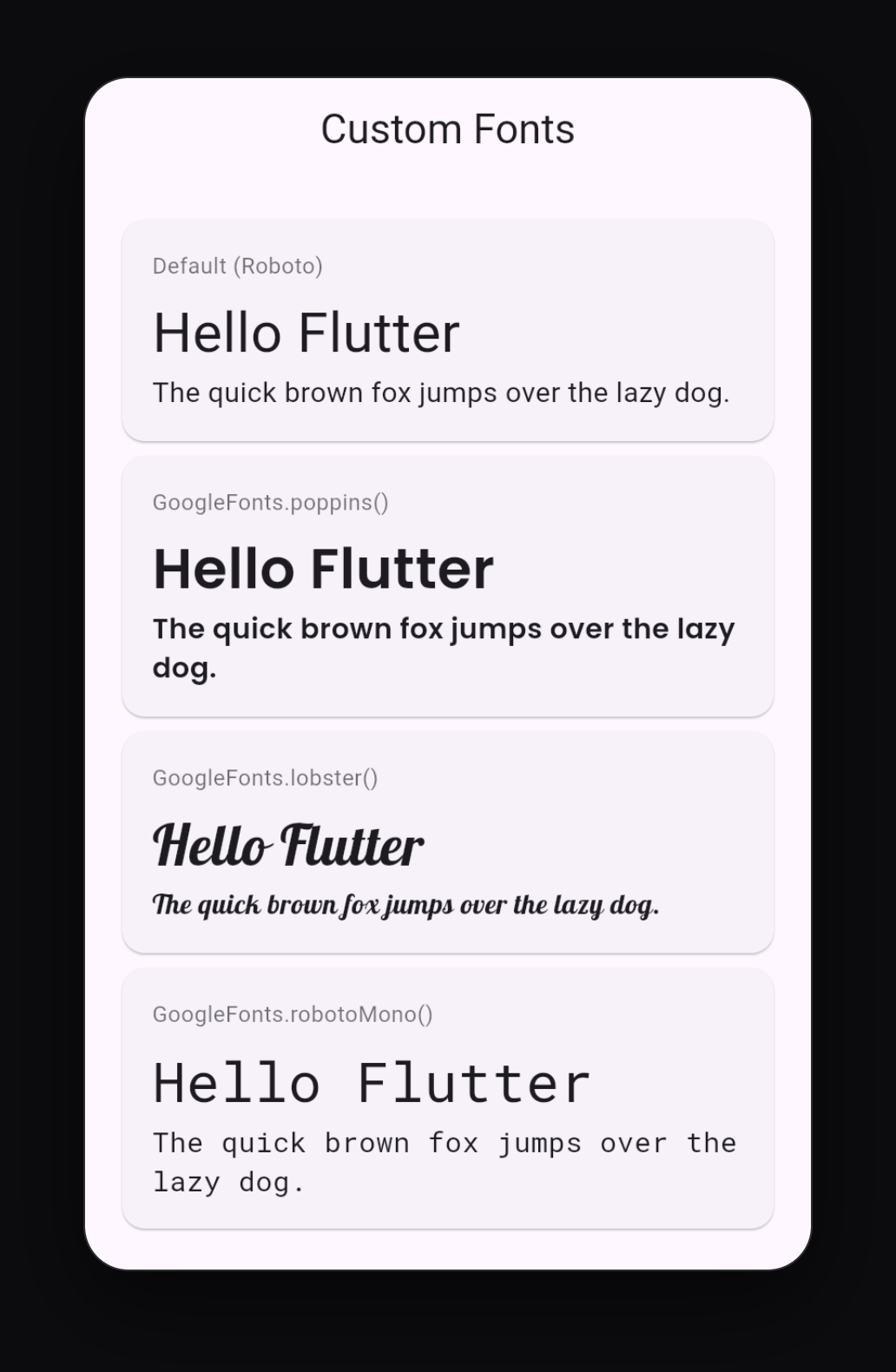
You have two options: add font files yourself, or use the google_fonts package.
Option A: Add font files
- Download a font, for example Poppins from Google Fonts. You get
.ttffiles. - Copy the weights you need into
assets/fonts/:
assets/
└── fonts/
    ├── Poppins-Regular.ttf
    ├── Poppins-Medium.ttf
    └── Poppins-Bold.ttf
- Register them in
pubspec.yamlunderflutter::
flutter:
  uses-material-design: true

  assets:
    - assets/images/

  fonts:
    - family: Poppins
      fonts:
        - asset: assets/fonts/Poppins-Regular.ttf
        - asset: assets/fonts/Poppins-Medium.ttf
          weight: 500
        - asset: assets/fonts/Poppins-Bold.ttf
          weight: 700
familyis the name you will use in your code.weightconnects each file to aFontWeight.FontWeight.w700(orFontWeight.bold) will usePoppins-Bold.ttf.
- Use it for one text:
const Text(
  'Hello Flutter',
  style: TextStyle(fontFamily: 'Poppins', fontSize: 24, fontWeight: FontWeight.bold),
)
- Or use it for the whole app by setting it in the theme:
MaterialApp(
  theme: ThemeData(fontFamily: 'Poppins'),
  home: const HomeScreen(),
)
Now every Text in your app uses Poppins automatically.
Option B: The google_fonts package
The google_fonts package gives you over 1,000 fonts without downloading files:
flutter pub add google_fonts
Use it for one text:
import 'package:google_fonts/google_fonts.dart';

Text(
  'Hello Flutter',
  style: GoogleFonts.poppins(fontSize: 24, fontWeight: FontWeight.w600),
)
Or for the whole app:
MaterialApp(
  theme: ThemeData(
    textTheme: GoogleFonts.poppinsTextTheme(),
  ),
  home: const HomeScreen(),
)
Which option should I choose?
- google_fonts is fastest for trying different fonts. By default it downloads the font the first time the app runs and caches it.
- Font files work offline from the very first launch and do not depend on the network. For a production app, you can also bundle the Google Fonts files as assets and the package will use them.
Common errors and how to fix them
"Unable to load asset: assets/images/logo.png"
The most common image error. Check these in order:
- The file really exists at that path, with the same upper and lower case letters.
Logo.PNGandlogo.pngare different files. - The folder is listed under
assets:inpubspec.yaml. - The
assetsfolder is in the project root, not insidelib. - You fully restarted the app after changing
pubspec.yaml. Hot reload is not enough.
"Error on line X, column Y of pubspec.yaml"
Almost always an indentation problem. Use 2 spaces per level, no tabs, and make sure assets: and fonts: are inside the flutter: section.
The custom font does not change
- The
familyname inpubspec.yamland thefontFamilyin your code must match exactly (Poppins, notpoppins). - Fully restart the app.
- Check that you added a file for the weight you are using. If you use
FontWeight.boldbut only added the Regular file, Flutter fakes the bold style, which can look different.
The network image does not load in the release APK
Add the INTERNET permission to android/app/src/main/AndroidManifest.xml.
The image is stretched or squashed
You set both width and height with BoxFit.fill. Use BoxFit.cover instead.
Quick reference
| I want to... | Code |
|---|---|
| Show a local image | Image.asset('assets/images/x.png') |
| Show an image from a URL | Image.network('https://...') |
| Fill a box without distortion | fit: BoxFit.cover |
| Rounded corners | wrap in ClipRRect |
| Round profile picture | CircleAvatar(backgroundImage: NetworkImage(...)) |
| Show an icon | Icon(Icons.home, size: 32, color: Colors.blue) |
| Clickable icon | IconButton(icon: ..., onPressed: ...) |
| Font for the whole app | ThemeData(fontFamily: 'Poppins') |
| Google Font for the whole app | ThemeData(textTheme: GoogleFonts.poppinsTextTheme()) |
What to learn next
- How to Create a Beautiful Login Screen in Flutter and add your own logo and font to it
- Flutter ListView and GridView: Complete Beginner Guide to show images in a grid
- How to Build and Release a Flutter APK and App Bundle, which also shows how to set your app icon
Keep reading
More articles
· 9 min read
Dart Basics for Flutter Beginners: Variables, Functions and Classes
Learn the Dart you need for Flutter: variables, final and const, null safety, lists and maps, if and loops, functions with named parameters, classes, and async/await, with runnable examples.
· 9 min read
Flutter Row, Column and Stack Explained with Examples
Understand Flutter's core layout widgets: main and cross axis, mainAxisAlignment, crossAxisAlignment, Expanded, Flexible, Spacer, Stack and Positioned, plus a complete profile card example.
· 7 min read
Flutter Navigation: How to Move Between Screens
Learn Flutter navigation step by step: Navigator.push and pop, passing data to a screen, returning results, pushReplacement for login flows, named routes, and when to use go_router.