Flutter Firebase Authentication: Login and Sign Up
Build a complete email and password login system in Flutter with Firebase Authentication: sign up, login, forgot password, logout and auto-login, with full code and friendly error messages.
By Yaqoob Developer · · 11 min read
- #Flutter
- #Firebase
- #Authentication
- #Login
- #Sign Up
- #Beginners
In this guide you will build a complete email and password login system in Flutter with Firebase Authentication: a sign-up screen, a login screen, a forgot-password option, a home screen with logout, and automatic redirect when the user is already logged in.
All the code is complete. You can copy each file into your project and run it.
In this post you will learn:
- How to enable Email/Password sign-in in the Firebase console
- How to write a small
AuthServiceclass for all auth calls - How to show the right screen automatically with
authStateChanges() - How to build the Login and Sign Up screens with form validation
- How to show friendly error messages instead of Firebase error codes
- Common mistakes and how to fix them
Before you start
Your Flutter app must already be connected to Firebase. If it is not, follow my guide How to Connect a Flutter Project to Firebase first. You should have:
- A Firebase project
lib/firebase_options.dartcreated byflutterfire configureFirebase.initializeApp()called inmain()
Step 1: Enable Email/Password sign-in
Firebase turns every sign-in method off by default, so you must enable it:
- Open the Firebase console and select your project.
- In the left menu, open Build → Authentication.
- If this is your first time, click Get started.
- Open the Sign-in method tab.
- Click Email/Password, switch on the first Enable toggle and click Save.
If you skip this step, every sign-up attempt fails with the error operation-not-allowed.
Step 2: Add the firebase_auth package
From your project folder, run:
flutter pub add firebase_auth
If the app was running, stop it completely and start it again with flutter run. Hot reload does not load new native plugins.
Step 3: The folder structure
We will keep the code small and organized:
lib/
├── main.dart                  # initializes Firebase, starts the app
├── firebase_options.dart      # generated by flutterfire configure
├── services/
│   └── auth_service.dart      # all Firebase Auth calls in one place
└── screens/
    ├── auth_gate.dart         # decides: login screen or home screen
    ├── login_screen.dart
    ├── sign_up_screen.dart
    └── home_screen.dart
The screens never call FirebaseAuth directly. They only talk to AuthService. This keeps your UI clean and makes it easy to change the auth logic later.
Step 4: Create the AuthService
Create lib/services/auth_service.dart:
import 'package:firebase_auth/firebase_auth.dart';

class AuthService {
  AuthService._();
  static final instance = AuthService._();

  final FirebaseAuth _auth = FirebaseAuth.instance;

  /// Emits the current user when they log in or log out (null = logged out).
  Stream<User?> get authStateChanges => _auth.authStateChanges();

  User? get currentUser => _auth.currentUser;

  Future<void> signUp({
    required String name,
    required String email,
    required String password,
  }) async {
    final credential = await _auth.createUserWithEmailAndPassword(
      email: email,
      password: password,
    );
    await credential.user?.updateDisplayName(name);
  }

  Future<void> signIn({required String email, required String password}) {
    return _auth.signInWithEmailAndPassword(email: email, password: password);
  }

  Future<void> sendPasswordReset(String email) {
    return _auth.sendPasswordResetEmail(email: email);
  }

  Future<void> signOut() => _auth.signOut();

  /// Turns Firebase error codes into messages a user can understand.
  static String messageFor(FirebaseAuthException e) {
    switch (e.code) {
      case 'invalid-email':
        return 'Please enter a valid email address.';
      case 'user-disabled':
        return 'This account has been disabled.';
      case 'invalid-credential':
      case 'user-not-found':
      case 'wrong-password':
        return 'Incorrect email or password.';
      case 'email-already-in-use':
        return 'An account already exists with this email.';
      case 'weak-password':
        return 'Password is too weak. Use at least 6 characters.';
      case 'too-many-requests':
        return 'Too many attempts. Please wait a moment and try again.';
      case 'network-request-failed':
        return 'No internet connection. Please check your network.';
      case 'operation-not-allowed':
        return 'Email/Password sign-in is not enabled in Firebase.';
      default:
        return e.message ?? 'Something went wrong. Please try again.';
    }
  }
}
A few things to notice:
createUserWithEmailAndPasswordcreates the account and logs the user in at the same time.updateDisplayNamesaves the user's name on their Firebase account, so you can show it later withuser.displayName.- New Firebase projects have email enumeration protection turned on. That means a wrong password and an unknown email both return the same
invalid-credentialcode. This is a security feature: attackers cannot find out which emails are registered. That is why we show one message, "Incorrect email or password", for all three codes.
Step 5: Show the right screen with an AuthGate
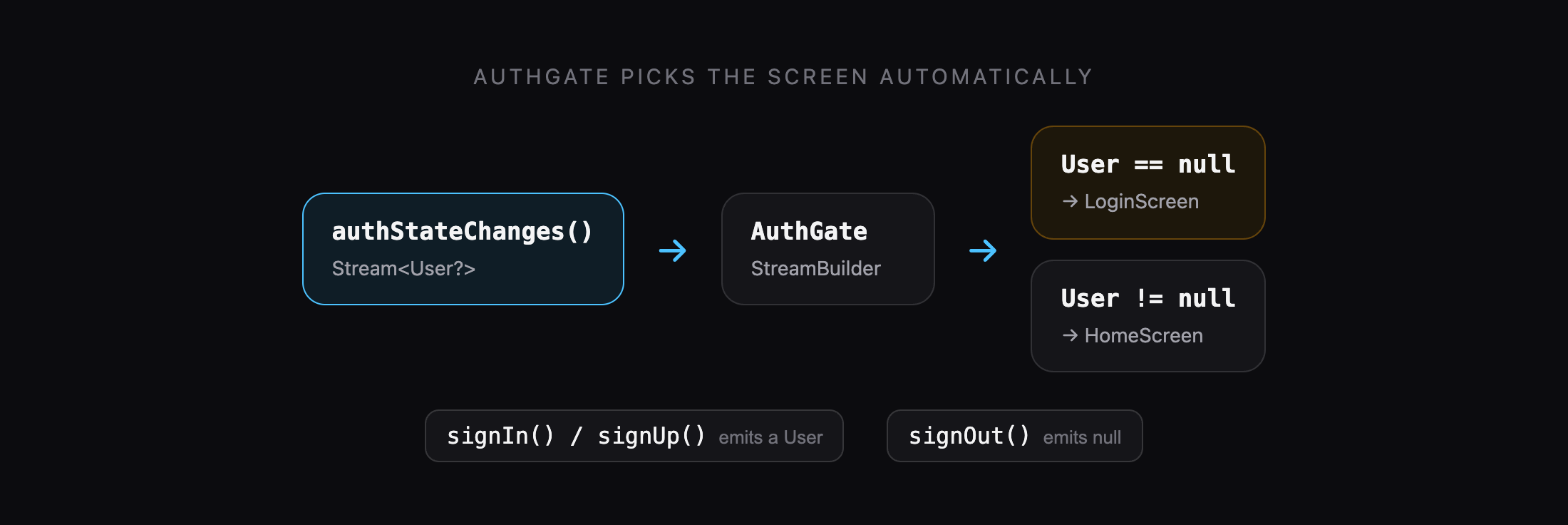
The AuthGate listens to authStateChanges(). When the user logs in, it shows the home screen. When they log out, it shows the login screen. You never have to navigate manually after login or logout.
Firebase also remembers the logged-in user on the device, so if the user closes the app and opens it again, they go straight to the home screen.
Create lib/screens/auth_gate.dart:
import 'package:firebase_auth/firebase_auth.dart';
import 'package:flutter/material.dart';

import '../services/auth_service.dart';
import 'home_screen.dart';
import 'login_screen.dart';

class AuthGate extends StatelessWidget {
  const AuthGate({super.key});

  @override
  Widget build(BuildContext context) {
    return StreamBuilder<User?>(
      stream: AuthService.instance.authStateChanges,
      builder: (context, snapshot) {
        if (snapshot.connectionState == ConnectionState.waiting) {
          return const Scaffold(
            body: Center(child: CircularProgressIndicator()),
          );
        }
        if (snapshot.hasData) {
          return const HomeScreen();
        }
        return const LoginScreen();
      },
    );
  }
}
Step 6: Update main.dart
Replace lib/main.dart with:
import 'package:firebase_core/firebase_core.dart';
import 'package:flutter/material.dart';

import 'firebase_options.dart';
import 'screens/auth_gate.dart';

Future<void> main() async {
  WidgetsFlutterBinding.ensureInitialized();
  await Firebase.initializeApp(
    options: DefaultFirebaseOptions.currentPlatform,
  );
  runApp(const MyApp());
}

class MyApp extends StatelessWidget {
  const MyApp({super.key});

  @override
  Widget build(BuildContext context) {
    return MaterialApp(
      title: 'Firebase Auth Demo',
      debugShowCheckedModeBanner: false,
      theme: ThemeData(
        colorSchemeSeed: Colors.indigo,
        useMaterial3: true,
        inputDecorationTheme: const InputDecorationTheme(
          border: OutlineInputBorder(),
        ),
      ),
      home: const AuthGate(),
    );
  }
}
Step 7: Build the Login screen
Create lib/screens/login_screen.dart:
import 'package:firebase_auth/firebase_auth.dart';
import 'package:flutter/material.dart';

import '../services/auth_service.dart';
import 'sign_up_screen.dart';

class LoginScreen extends StatefulWidget {
  const LoginScreen({super.key});

  @override
  State<LoginScreen> createState() => _LoginScreenState();
}

class _LoginScreenState extends State<LoginScreen> {
  final _formKey = GlobalKey<FormState>();
  final _emailController = TextEditingController();
  final _passwordController = TextEditingController();
  bool _loading = false;
  bool _obscure = true;

  @override
  void dispose() {
    _emailController.dispose();
    _passwordController.dispose();
    super.dispose();
  }

  void _showMessage(String message) {
    ScaffoldMessenger.of(context)
      ..hideCurrentSnackBar()
      ..showSnackBar(SnackBar(content: Text(message)));
  }

  Future<void> _login() async {
    if (!_formKey.currentState!.validate()) return;

    setState(() => _loading = true);
    try {
      await AuthService.instance.signIn(
        email: _emailController.text.trim(),
        password: _passwordController.text,
      );
      // No navigation needed: AuthGate shows HomeScreen automatically.
    } on FirebaseAuthException catch (e) {
      _showMessage(AuthService.messageFor(e));
    } finally {
      if (mounted) setState(() => _loading = false);
    }
  }

  Future<void> _forgotPassword() async {
    final email = _emailController.text.trim();
    if (email.isEmpty || !email.contains('@')) {
      _showMessage('Enter your email above first.');
      return;
    }
    try {
      await AuthService.instance.sendPasswordReset(email);
      _showMessage('If an account exists, a reset link was sent to $email.');
    } on FirebaseAuthException catch (e) {
      _showMessage(AuthService.messageFor(e));
    }
  }

  @override
  Widget build(BuildContext context) {
    return Scaffold(
      body: SafeArea(
        child: Center(
          child: SingleChildScrollView(
            padding: const EdgeInsets.all(24),
            child: Form(
              key: _formKey,
              child: Column(
                crossAxisAlignment: CrossAxisAlignment.stretch,
                children: [
                  Text(
                    'Welcome back',
                    style: Theme.of(context).textTheme.headlineMedium,
                  ),
                  const SizedBox(height: 8),
                  const Text('Log in to continue'),
                  const SizedBox(height: 32),
                  TextFormField(
                    controller: _emailController,
                    keyboardType: TextInputType.emailAddress,
                    autofillHints: const [AutofillHints.email],
                    textInputAction: TextInputAction.next,
                    decoration: const InputDecoration(
                      labelText: 'Email',
                      prefixIcon: Icon(Icons.email_outlined),
                    ),
                    validator: (value) {
                      final email = value?.trim() ?? '';
                      if (email.isEmpty) return 'Email is required';
                      if (!email.contains('@')) return 'Enter a valid email';
                      return null;
                    },
                  ),
                  const SizedBox(height: 16),
                  TextFormField(
                    controller: _passwordController,
                    obscureText: _obscure,
                    autofillHints: const [AutofillHints.password],
                    textInputAction: TextInputAction.done,
                    onFieldSubmitted: (_) => _login(),
                    decoration: InputDecoration(
                      labelText: 'Password',
                      prefixIcon: const Icon(Icons.lock_outline),
                      suffixIcon: IconButton(
                        icon: Icon(
                          _obscure ? Icons.visibility : Icons.visibility_off,
                        ),
                        onPressed: () => setState(() => _obscure = !_obscure),
                      ),
                    ),
                    validator: (value) => (value == null || value.isEmpty)
                        ? 'Password is required'
                        : null,
                  ),
                  Align(
                    alignment: Alignment.centerRight,
                    child: TextButton(
                      onPressed: _loading ? null : _forgotPassword,
                      child: const Text('Forgot password?'),
                    ),
                  ),
                  const SizedBox(height: 8),
                  FilledButton(
                    onPressed: _loading ? null : _login,
                    child: _loading
                        ? const SizedBox(
                            height: 20,
                            width: 20,
                            child: CircularProgressIndicator(strokeWidth: 2),
                          )
                        : const Text('Log in'),
                  ),
                  const SizedBox(height: 16),
                  Row(
                    mainAxisAlignment: MainAxisAlignment.center,
                    children: [
                      const Text("Don't have an account?"),
                      TextButton(
                        onPressed: _loading
                            ? null
                            : () => Navigator.of(context).push(
                                  MaterialPageRoute(
                                    builder: (_) => const SignUpScreen(),
                                  ),
                                ),
                        child: const Text('Sign up'),
                      ),
                    ],
                  ),
                ],
              ),
            ),
          ),
        ),
      ),
    );
  }
}
Key points:
_formKey.currentState!.validate()runs everyvalidatorand stops if any field is invalid, so you never send an empty email to Firebase.- We
trim()the email to remove accidental spaces, but never trim the password. - After
await, we checkmountedbefore callingsetState. The widget may already be gone becauseAuthGatereplaced it with the home screen. - The forgot-password message does not say whether the email exists. That matches email enumeration protection.
Step 8: Build the Sign Up screen
Create lib/screens/sign_up_screen.dart:
import 'package:firebase_auth/firebase_auth.dart';
import 'package:flutter/material.dart';

import '../services/auth_service.dart';

class SignUpScreen extends StatefulWidget {
  const SignUpScreen({super.key});

  @override
  State<SignUpScreen> createState() => _SignUpScreenState();
}

class _SignUpScreenState extends State<SignUpScreen> {
  final _formKey = GlobalKey<FormState>();
  final _nameController = TextEditingController();
  final _emailController = TextEditingController();
  final _passwordController = TextEditingController();
  final _confirmController = TextEditingController();
  bool _loading = false;
  bool _obscure = true;

  @override
  void dispose() {
    _nameController.dispose();
    _emailController.dispose();
    _passwordController.dispose();
    _confirmController.dispose();
    super.dispose();
  }

  Future<void> _signUp() async {
    if (!_formKey.currentState!.validate()) return;

    setState(() => _loading = true);
    try {
      await AuthService.instance.signUp(
        name: _nameController.text.trim(),
        email: _emailController.text.trim(),
        password: _passwordController.text,
      );
      // The user is now logged in. Close this screen so AuthGate's
      // HomeScreen is visible.
      if (mounted) Navigator.of(context).pop();
    } on FirebaseAuthException catch (e) {
      if (!mounted) return;
      ScaffoldMessenger.of(context).showSnackBar(
        SnackBar(content: Text(AuthService.messageFor(e))),
      );
    } finally {
      if (mounted) setState(() => _loading = false);
    }
  }

  @override
  Widget build(BuildContext context) {
    return Scaffold(
      appBar: AppBar(),
      body: SafeArea(
        child: SingleChildScrollView(
          padding: const EdgeInsets.all(24),
          child: Form(
            key: _formKey,
            child: Column(
              crossAxisAlignment: CrossAxisAlignment.stretch,
              children: [
                Text(
                  'Create account',
                  style: Theme.of(context).textTheme.headlineMedium,
                ),
                const SizedBox(height: 8),
                const Text('Sign up to get started'),
                const SizedBox(height: 32),
                TextFormField(
                  controller: _nameController,
                  textCapitalization: TextCapitalization.words,
                  autofillHints: const [AutofillHints.name],
                  textInputAction: TextInputAction.next,
                  decoration: const InputDecoration(
                    labelText: 'Full name',
                    prefixIcon: Icon(Icons.person_outline),
                  ),
                  validator: (value) => (value?.trim().isEmpty ?? true)
                      ? 'Name is required'
                      : null,
                ),
                const SizedBox(height: 16),
                TextFormField(
                  controller: _emailController,
                  keyboardType: TextInputType.emailAddress,
                  autofillHints: const [AutofillHints.email],
                  textInputAction: TextInputAction.next,
                  decoration: const InputDecoration(
                    labelText: 'Email',
                    prefixIcon: Icon(Icons.email_outlined),
                  ),
                  validator: (value) {
                    final email = value?.trim() ?? '';
                    if (email.isEmpty) return 'Email is required';
                    if (!email.contains('@')) return 'Enter a valid email';
                    return null;
                  },
                ),
                const SizedBox(height: 16),
                TextFormField(
                  controller: _passwordController,
                  obscureText: _obscure,
                  autofillHints: const [AutofillHints.newPassword],
                  textInputAction: TextInputAction.next,
                  decoration: InputDecoration(
                    labelText: 'Password',
                    prefixIcon: const Icon(Icons.lock_outline),
                    suffixIcon: IconButton(
                      icon: Icon(
                        _obscure ? Icons.visibility : Icons.visibility_off,
                      ),
                      onPressed: () => setState(() => _obscure = !_obscure),
                    ),
                  ),
                  validator: (value) {
                    if (value == null || value.isEmpty) {
                      return 'Password is required';
                    }
                    if (value.length < 6) return 'Use at least 6 characters';
                    return null;
                  },
                ),
                const SizedBox(height: 16),
                TextFormField(
                  controller: _confirmController,
                  obscureText: _obscure,
                  textInputAction: TextInputAction.done,
                  onFieldSubmitted: (_) => _signUp(),
                  decoration: const InputDecoration(
                    labelText: 'Confirm password',
                    prefixIcon: Icon(Icons.lock_outline),
                  ),
                  validator: (value) => value != _passwordController.text
                      ? 'Passwords do not match'
                      : null,
                ),
                const SizedBox(height: 24),
                FilledButton(
                  onPressed: _loading ? null : _signUp,
                  child: _loading
                      ? const SizedBox(
                          height: 20,
                          width: 20,
                          child: CircularProgressIndicator(strokeWidth: 2),
                        )
                      : const Text('Sign up'),
                ),
                const SizedBox(height: 16),
                Row(
                  mainAxisAlignment: MainAxisAlignment.center,
                  children: [
                    const Text('Already have an account?'),
                    TextButton(
                      onPressed:
                          _loading ? null : () => Navigator.of(context).pop(),
                      child: const Text('Log in'),
                    ),
                  ],
                ),
              ],
            ),
          ),
        ),
      ),
    );
  }
}
Why do we call Navigator.pop() after sign-up? The Sign Up screen was pushed on top of the AuthGate. When the account is created, the AuthGate underneath switches to the home screen, but the Sign Up screen is still covering it. Popping it reveals the home screen.
Firebase requires passwords of at least 6 characters. Our validator checks this before the request is sent, so users get instant feedback.
Step 9: Build the Home screen with logout
Create lib/screens/home_screen.dart:
import 'package:flutter/material.dart';

import '../services/auth_service.dart';

class HomeScreen extends StatelessWidget {
  const HomeScreen({super.key});

  @override
  Widget build(BuildContext context) {
    final user = AuthService.instance.currentUser;
    final name = user?.displayName;

    return Scaffold(
      appBar: AppBar(
        title: const Text('Home'),
        actions: [
          IconButton(
            tooltip: 'Log out',
            icon: const Icon(Icons.logout),
            onPressed: () => AuthService.instance.signOut(),
          ),
        ],
      ),
      body: Center(
        child: Padding(
          padding: const EdgeInsets.all(24),
          child: Column(
            mainAxisSize: MainAxisSize.min,
            children: [
              const Icon(Icons.verified_user, size: 64),
              const SizedBox(height: 16),
              Text(
                'Hello, ${name == null || name.isEmpty ? 'there' : name}!',
                style: Theme.of(context).textTheme.headlineSmall,
              ),
              const SizedBox(height: 8),
              Text(user?.email ?? ''),
            ],
          ),
        ),
      ),
    );
  }
}
When the user taps logout, signOut() fires a new event on authStateChanges() with null, and the AuthGate shows the login screen again. No navigation code needed.
Note: right after sign-up, the name may show "there" for a moment because updateDisplayName finishes after the login event. It appears correctly on the next rebuild or app restart. If you need it instantly everywhere, listen to FirebaseAuth.instance.userChanges() instead of authStateChanges() in the AuthGate, because userChanges() also fires when profile data like the display name changes.
Step 10: Run and test
flutter run
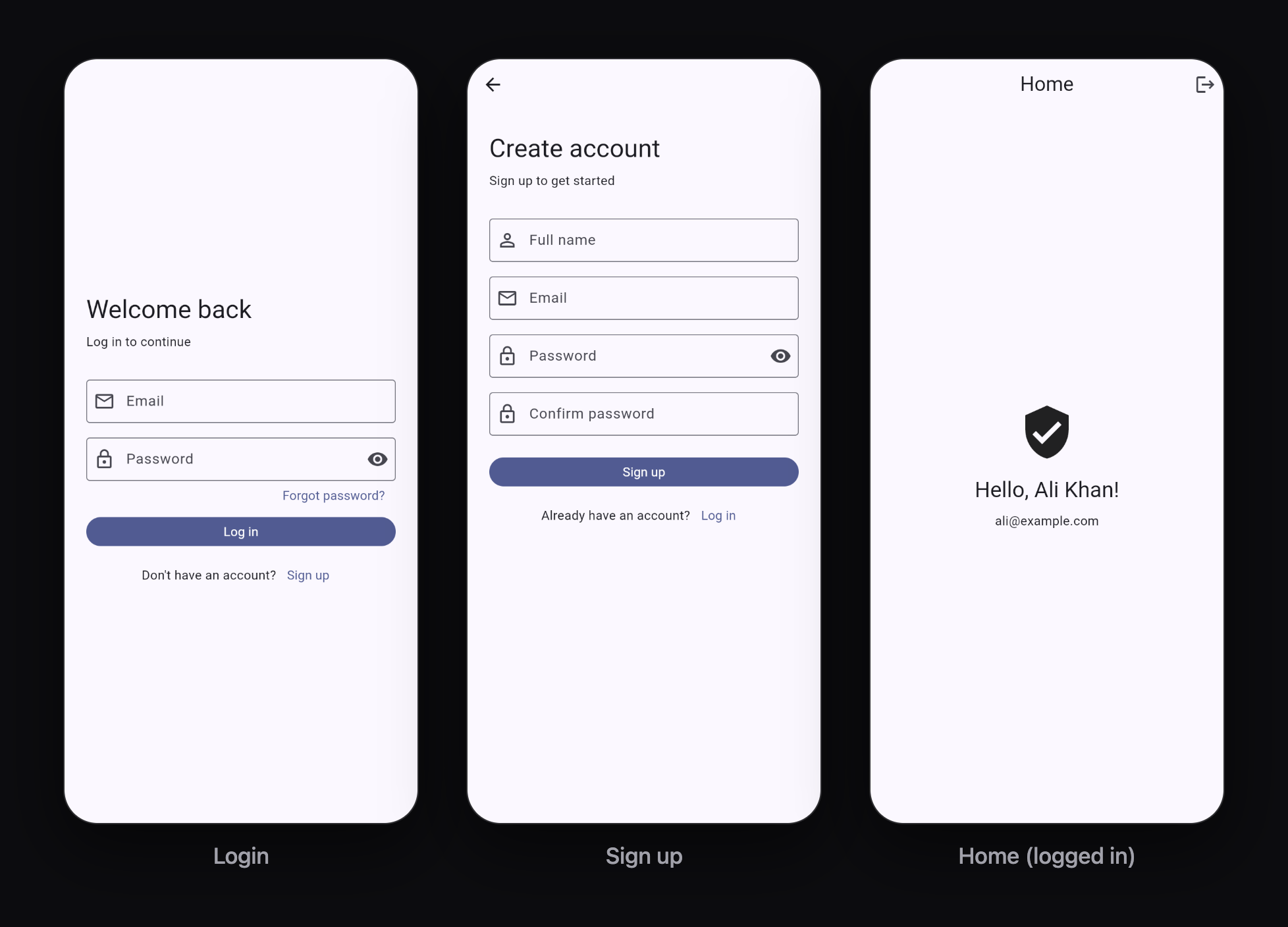
Test the full flow:
- Sign up with a new email and password. You land on the home screen with your name.
- Open the Firebase console, go to Authentication → Users. Your new user is listed there.
- Tap Log out. You return to the login screen.
- Log in with the same email and password.
- Try a wrong password. You see "Incorrect email or password."
- Try signing up again with the same email. You see "An account already exists with this email."
- Close the app completely and open it again. You are still logged in.
Common mistakes and how to fix them
Sign up fails with "operation-not-allowed"
Email/Password is not enabled. Go back to Step 1 and enable it in Authentication → Sign-in method.
"[core/no-app] No Firebase App '[DEFAULT]' has been created"
Firebase.initializeApp() was not awaited before runApp(). Check main.dart against Step 6.
Login always says "Incorrect email or password", even for new emails
That is email enumeration protection working as designed. Firebase returns invalid-credential for both an unknown email and a wrong password, so your app cannot (and should not) tell them apart.
"setState() called after dispose()"
You called setState after an await when the screen was already removed. Always check if (mounted) after any await before using setState or context, as in the code above.
Home screen does not appear after sign-up
You forgot Navigator.pop() after sign-up, so the Sign Up screen is still covering the AuthGate. See Step 8.
Reset password email never arrives
Check the spam folder first. Also make sure the email is typed correctly, because with enumeration protection Firebase does not tell you if the account exists.
What to learn next
You now have a working login and sign-up system. Here are good next steps:
- Email verification: call
user.sendEmailVerification()after sign-up and checkuser.emailVerifiedbefore allowing access. - Google Sign-In: add the
google_sign_inpackage and enable Google in the Sign-in method tab. - Save user profiles in Firestore: after sign-up, create a document in a
userscollection with the user'suid, name and other details. - Clean architecture: move
AuthServiceinto a proper data layer as your app grows. My guide on Flutter Clean Architecture and folder structure shows how, with a login feature example.
Keep reading
More articles
· 9 min read
Dart Basics for Flutter Beginners: Variables, Functions and Classes
Learn the Dart you need for Flutter: variables, final and const, null safety, lists and maps, if and loops, functions with named parameters, classes, and async/await, with runnable examples.
· 9 min read
Flutter Row, Column and Stack Explained with Examples
Understand Flutter's core layout widgets: main and cross axis, mainAxisAlignment, crossAxisAlignment, Expanded, Flexible, Spacer, Stack and Positioned, plus a complete profile card example.
· 7 min read
Flutter Navigation: How to Move Between Screens
Learn Flutter navigation step by step: Navigator.push and pop, passing data to a screen, returning results, pushReplacement for login flows, named routes, and when to use go_router.